
Waiting List Addon
The Waiting List Addon is a powerful tool designed to help event organizers manage sold-out events efficiently. It allows potential attendees to join a chronological queue when an event reaches full capacity, ensuring that any spots made available through cancellations are promptly filled based on reservation priority.
Initial Setup
Before you begin, ensure you have the following requirements met:
- MEC Pro: This addon requires the Pro version of Modern Events Calendar (version 6.0 or higher).
- Activation: Ensure both the MEC plugin and the Waiting List Addon are installed and activated on your WordPress site.
Read Also:
How to install MEC and Addons?Configuring Waiting List Settings
Once activated, you can find the global configuration options by navigating to MEC Settings > Booking > Waiting List.
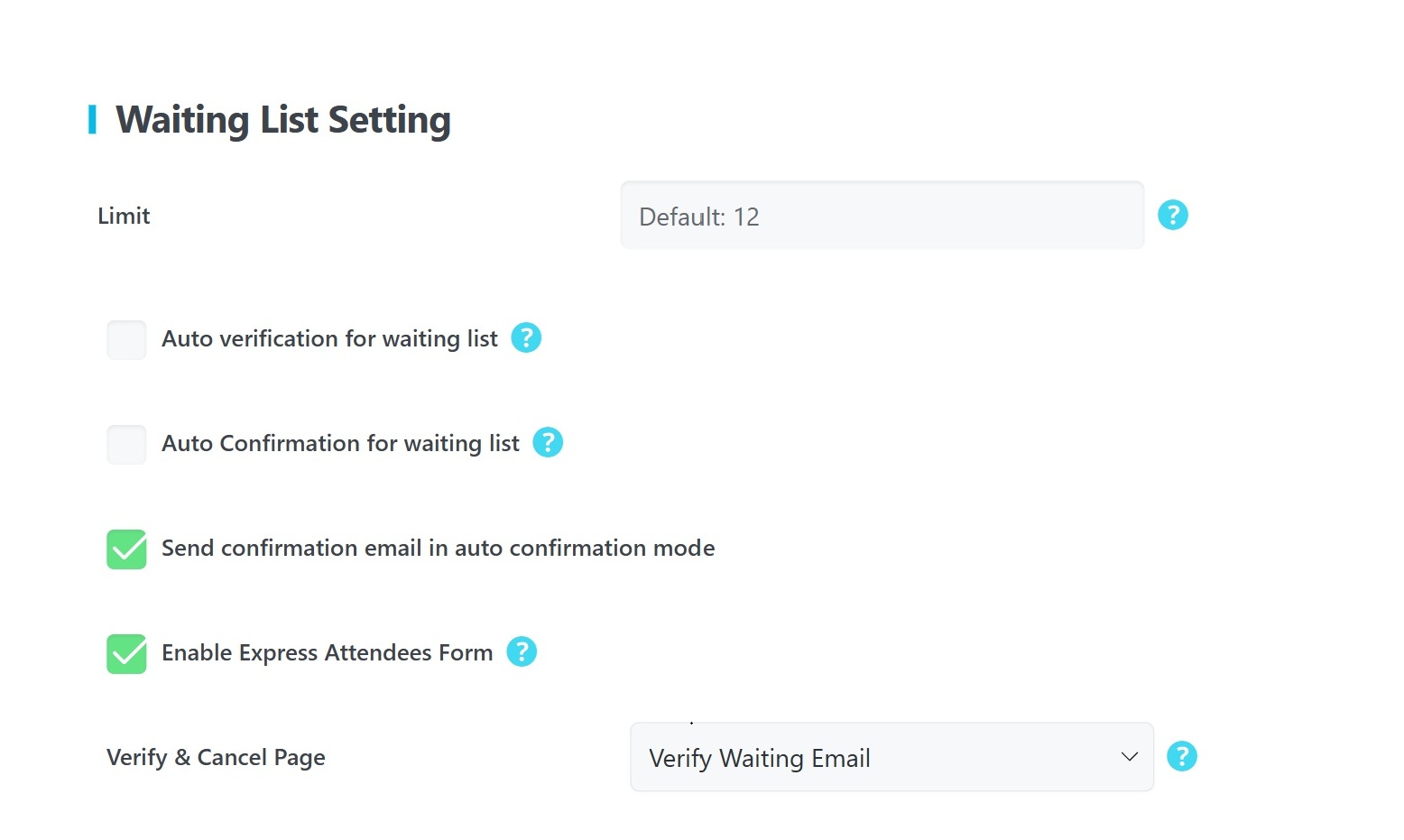
Waiting List Setting
- Limit: Define the total number of bookings a user can add to the waiting list. The default is set to 12; leave it empty for an unlimited list.
- Auto verification for waiting list: When enabled, users are verified automatically. If disabled, a verification link is sent to the user’s email to ensure the authenticity of the entry.
- Auto Confirmation for waiting list: Enabling this allows users to be added to the waiting list without manual approval from the administrator.
- Send confirmation email in auto confirmation mode: When active, users receive an automated email notifying them they have successfully joined the queue.
- Enable Express Attendees Form: This feature saves time for users booking multiple spots by applying the information from the first attendee to all others in that reservation.
- Verify & Cancel Page: Select a dedicated page where users can verify their email or cancel their spot.
Pro Tip: If the Verify & Cancel Page is not created automatically, you need to create a WordPress page and add the [waiting_notif_page] shortcode for it to function properly.
User Registration
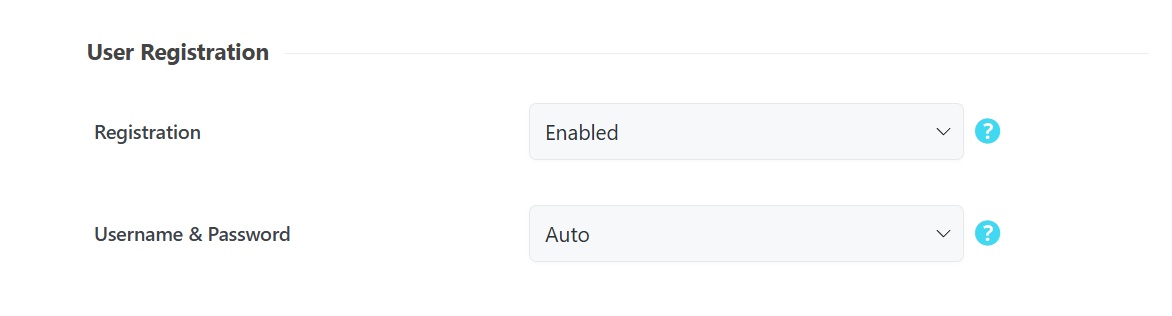
- Registration: Setting this to Enabled allows MEC to automatically create a WordPress User account for the main attendees.
- Username & Password: Choose Manual to let users select their own credentials during registration or allow MEC to auto-generate them based on their email.
Waiting List Form Builder
You can create a dedicated form to capture specific information from users joining the waiting list.
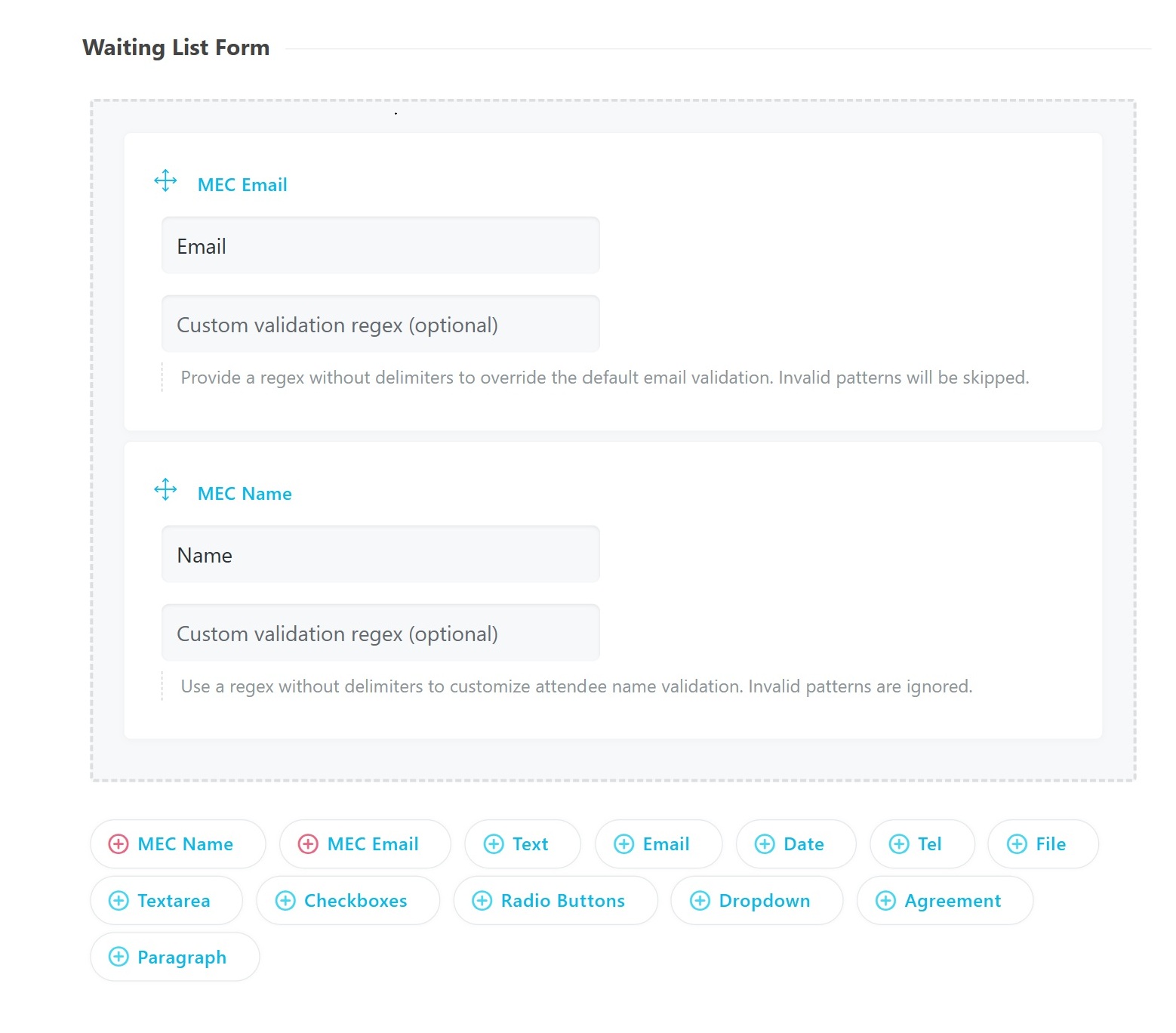
- Global Form: Accessible in the main settings, this form acts as the default for all events.
- Form Elements: You can drag and drop various fields, including MEC Name, MEC Email, Text, Date, Tel, File, Checkboxes, and Agreement.
- Validation: You can add Custom validation regex to fields like Name and Email to ensure data accuracy.
Per-Event Customization
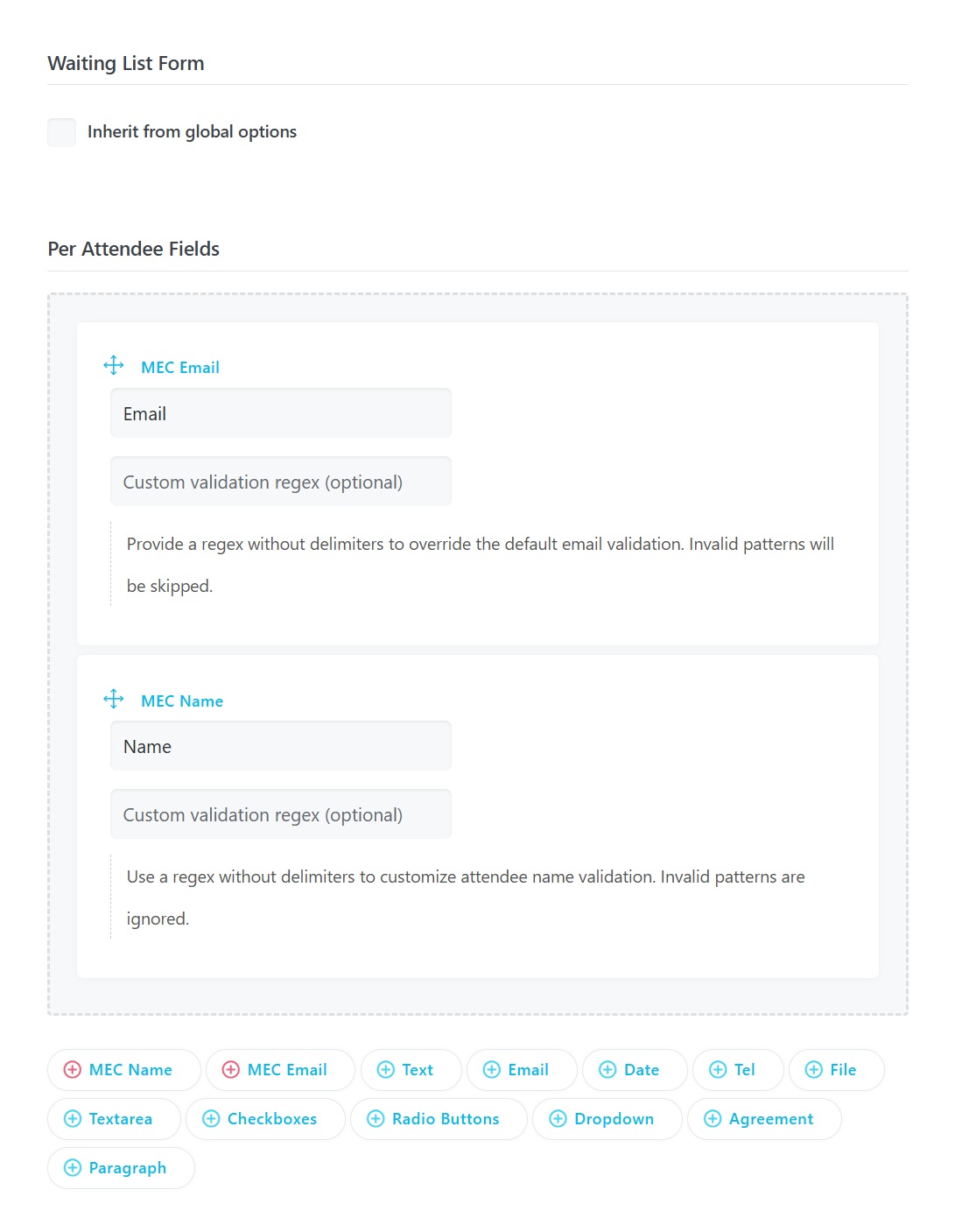
You can override the global form for specific events by going to the single event settings under the Waiting List Form tab.
Management Hub
All waiting list requests are housed in a dedicated menu for easy oversight.
- Accessing Requests: Navigate to the main WordPress sidebar and select Waiting List to view all active requests.
- Priority Tracking: Requests are displayed chronologically, allowing you to see the order in which users joined.
- Manual Actions: If Auto-verification or Auto-confirmation is disabled, administrators must manually update the status of these requests from this menu.
The Waiting List Workflow
Understanding how a user moves from the waiting list to an active booking is critical for smooth operation.
- Submission: When an event is sold out, the standard booking form is replaced by the Waiting List Form.
- Status: All waiting list entrants are registered with a Pay Locally status.
- Transfer: If a registered attendee cancels or if an administrator increases the event capacity, the system automatically moves the next person in the queue to the main attendee list.
- Payment: Once transferred, the administrator must contact the user to collect the ticket fee, either online via services like PayPal or locally at the venue.
Pro Tip: To manage outgoing communications, go to MEC Settings > Notifications to customize the Waiting Verification and Waiting Confirmation email templates.
Use Cases (When This Addon is Useful)
- Sold-Out High-Demand Events: Perfect for concerts or workshops where demand exceeds initial capacity, allowing you to gauge interest for adding more sessions.
- Managing Cancellations: Automatically fills empty spots when someone drops out, ensuring your event remains at maximum capacity without manual re-listing.
- Gauging Interest for Expired Events: Useful for seeing how many people would have attended an event that has already passed to plan for future dates.
Situations This Addon May Not Be Ideal
- MEC Lite Users: This addon is strictly incompatible with the free version of Modern Events Calendar.
- Instant Payment Workflows: Since users are added as “Pay Locally,” it is not suitable for workflows requiring immediate upfront payment to join a queue.
- Non-WordPress Sites: This is a dedicated WordPress plugin and cannot be used on other platforms.
Troubleshooting for Beginners
- Users not receiving emails? Ensure your notification settings are configured in MEC Settings > Notifications and check your server’s email delivery status.
- Shortcode not working? If the Verify/Cancel page isn’t loading, double-check that you have pasted [waiting_notif_page] exactly as shown onto the page.
- Update issues? If you don’t see an update option in the Plugins menu, ensure your addon license is correctly activated in the Webnus dashboard.
FAQ
What is the purpose of the MEC Waiting List Addon?
The MEC Waiting List Addon is designed to help event organizers manage sold-out events efficiently by allowing users to join a waiting list when an event reaches full capacity. If spots become available due to cancellations, the addon automatically moves users from the waiting list to the main attendee list based on their reservation priority.
How does the Waiting List Addon handle cancellations for sold-out events?
When a registered attendee cancels their reservation for a sold-out event, the addon automatically moves the next person on the waiting list to the main attendee list based on their reservation priority. This ensures that available spots are promptly filled without manual intervention.
Can I customize the information collected from users on the waiting list?
Yes, the addon includes a dedicated form builder that allows you to create personalized waiting list forms for each event. You can define specific fields to capture the necessary information from potential attendees, tailoring the form to meet the unique requirements of your event.
Is it possible to set a limit on how many times a user can join the waiting list?
Absolutely. Within the addon settings, you can specify the maximum number of reservations a user can make on the waiting list. If you prefer not to impose a limit, you can leave this field empty to allow unlimited reservations.
What is the purpose of the ‘Auto Verification’ feature in the addon?
The ‘Auto Verification’ feature streamlines the process of confirming user email addresses. When enabled, users are automatically verified upon joining the waiting list. If disabled, the system sends a verification link to the user’s email, which they must click to confirm their reservation, ensuring the authenticity of entries.
How does the ‘Auto Confirmation’ setting affect the waiting list process?
Enabling ‘Auto Confirmation’ allows users to be automatically confirmed on the waiting list upon submission, bypassing the need for manual approval by the admin. This expedites the process, ensuring that interested attendees are promptly added to the waiting list.
What functionality does the ‘Express Attendees Form’ provide?
The ‘Express Attendees Form’ feature is designed to simplify the reservation process for users booking multiple spots. When enabled, the information entered for the first attendee is automatically applied to all additional reservations made by that user. If you require distinct information for each attendee, you can disable this feature to collect individual details for every reservation.
How can users verify their email or cancel their reservation?
The addon allows you to create a dedicated ‘Verify & Cancel’ page using the [waiting_notif_page] shortcode. Once this page is set up and selected in the addon settings, users will receive a link to this page in their email notifications, enabling them to verify their email address or cancel their reservation as needed.
Are there customizable email notifications for waiting list actions?
Yes, the addon integrates seamlessly with MEC’s notification system. You can customize email templates for both ‘Waiting Verification’ and ‘Waiting Confirmation’ notifications, ensuring that users receive consistent and branded communications regarding their status on the waiting list.
What happens if a user on the waiting list doesn’t verify their email?
If ‘Auto Verification’ is disabled and a user fails to verify their email address via the verification link sent to them, their reservation remains unconfirmed. Only users who have completed the verification and confirmation process are eligible to be moved from the waiting list to the main attendee list when spots become available.
Can I apply a different waiting list form to each single event?
Yes, while there are global forms for the waiting list, you can override these on a per-event basis. This flexibility allows you to tailor the waiting list functionality to suit the specific needs and conditions of each event, providing a customized experience for your attendees.
How do I update the Waiting List Addon to the latest version?
To update the Waiting List Addon, go to your WordPress dashboard and navigate to Plugins > Installed Plugins. If an update is available, you will see an option to update the plugin. Click the Update Now button to ensure you are using the latest version with bug fixes and improvements. If a plugin update is unavailable, you may not have activated the addon license correctly, or you might be using an outdated version and need to manually download this addon through the Webnus dashboard and reinstall it.
What are the system requirements for using the MEC Waiting List Addon?
The MEC Waiting List Addon requires the Modern Events Calendar Pro plugin (version 6.0 or higher). You also need a WordPress site running at least PHP 7.4 and WordPress 5.0.
Does the Waiting List Addon work with MEC Lite (free)?
No, the Waiting List Addon does not work with MEC Lite. It requires the MEC Pro booking system to function properly, as a waiting list is only necessary once the maximum number of bookings for a single event has been reached.
Report Out Dated Content
If you think the content of this page does not reflect updated information, please let us know.
 5
5
