
Ticket and Invoice Addon
The Ticket and Invoice Addon is a professional tool that automatically generates PDF invoices and tickets for your event attendees. It includes advanced features like QR code check-ins, Apple Wallet support, and real-time attendee tracking.
Initial Setup
Before you begin, ensure you have the following:
Read Also:
How to install MEC and Addons?- MEC Pro: This addon requires the Pro version of Modern Events Calendar.
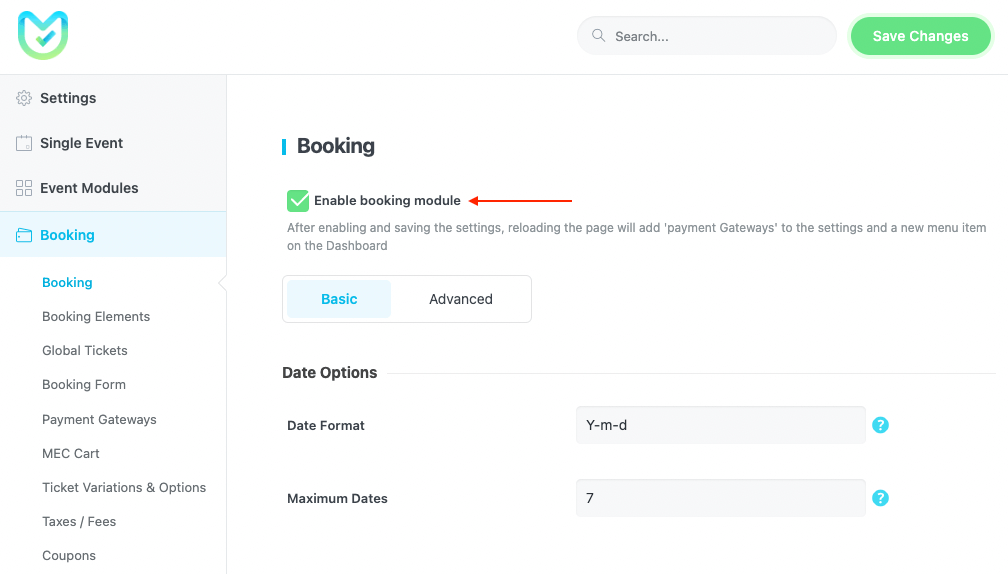
- Booking Module: Go to MEC Settings > Booking and enable the Booking Module. You must save changes and refresh your page for the addon options to appear.
Read Also:
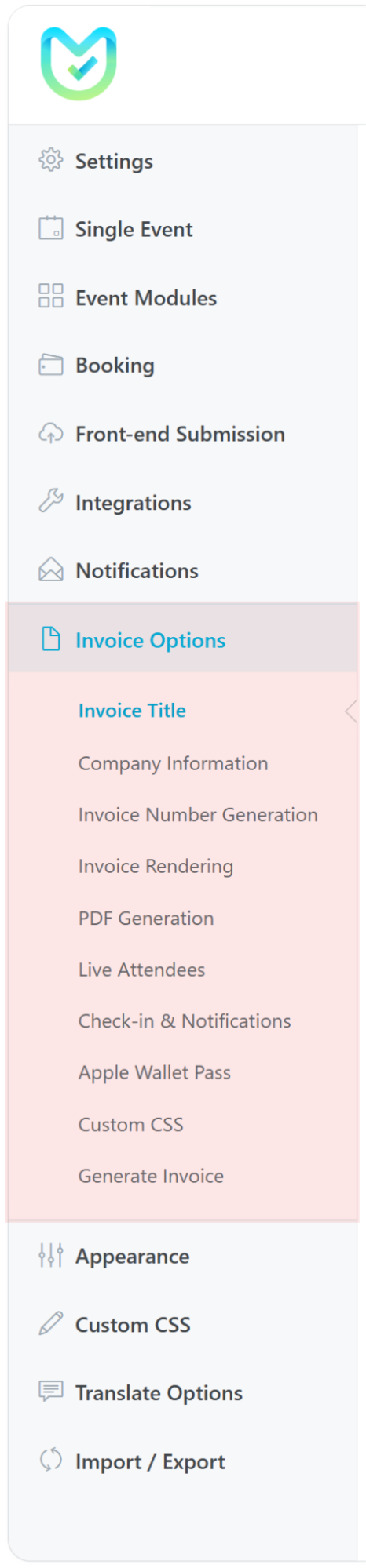
How to add a booking system?Accessing Settings: You can now find all configuration options in the main MEC sidebar under Invoice Options.
Configuring Your Invoices
Invoice Title
This setting controls what the user sees as the main heading of their document.
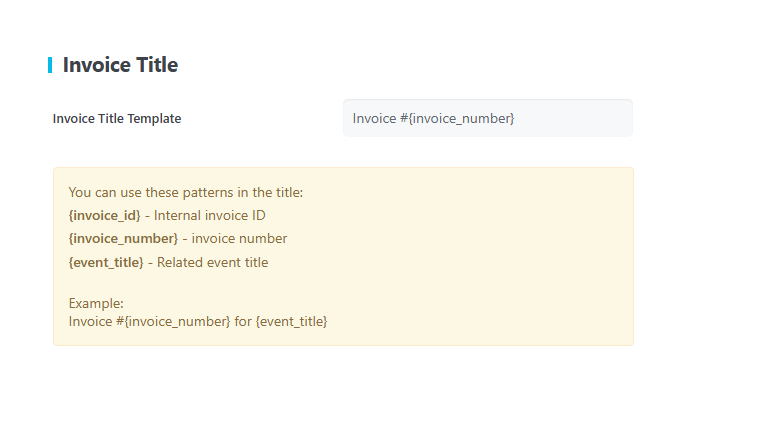
- Placeholders: You can use special “codes” that automatically pull information from the booking.
- {invoice_id}: The internal ID.
- {invoice_number}: The specific number generated for that sale.
- {event_title}: The name of the event they booked.
Pro Tip: A common template is Invoice #{invoice_number} for {event_title}.
Company Information
This section ensures your business details are professionally displayed on every ticket.
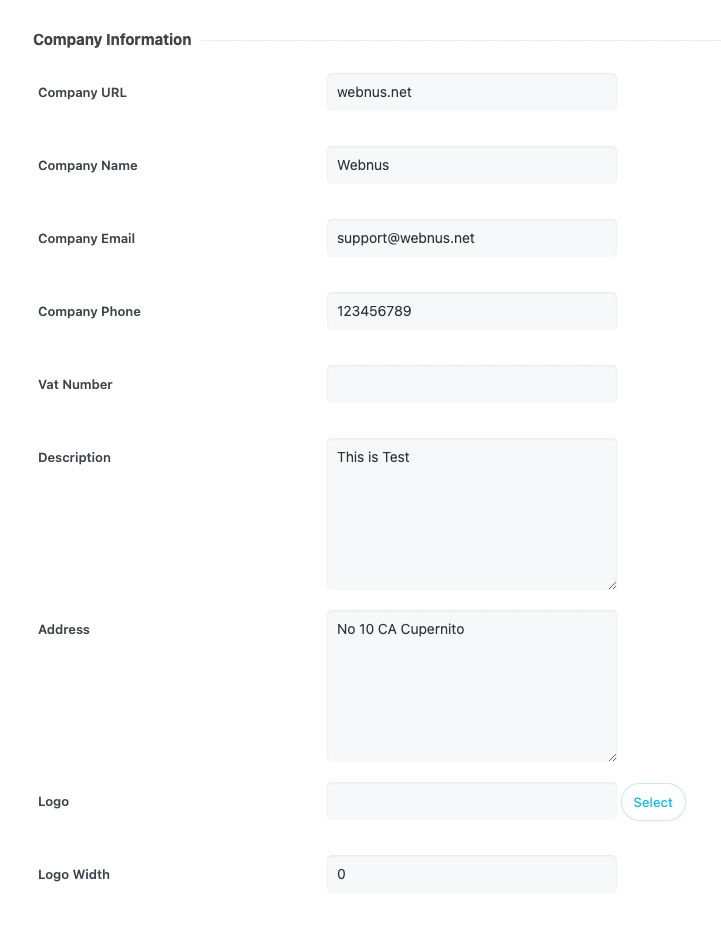
- Company URL/Name/Email/Phone: Your official business contact info.
- VAT Number: Your tax identification number, essential for legal invoices.
- Description & Address: A short bio of your company and your physical location.
- Logo: Upload your brand image.
- Logo Width (in pixels) to make sure it fits perfectly on the page.
Invoice Number Generation
Choose how you want to track your sales numbers.
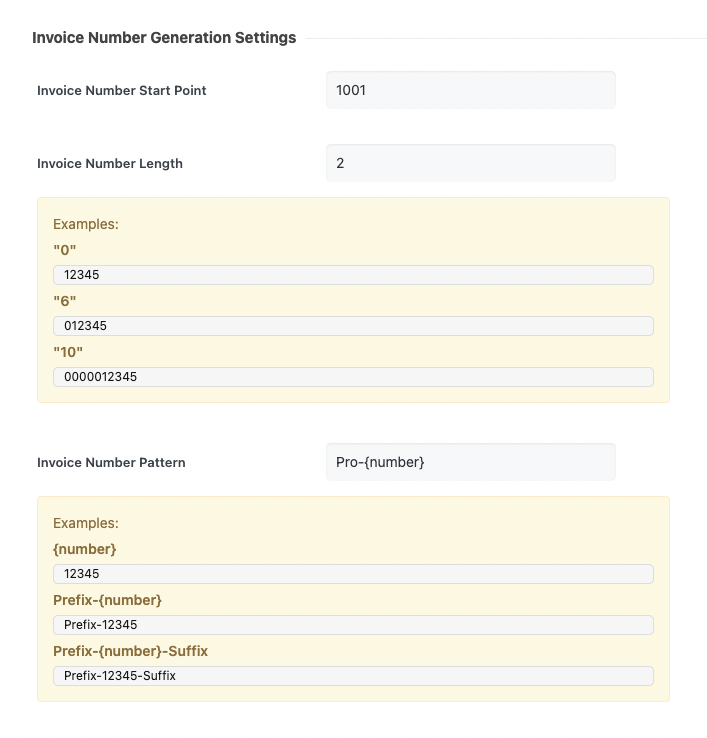
- Start Point: The number your very first invoice will start with (e.g., 1 or 100).
- Length: How many digits the number has. For example, if the length is 8, the number “1” will look like 00000001.
- Pattern: You can add text to your numbers, such as INV-{number} which results in INV-00000001.
Invoice Rendering (The Visual Style)
This section controls the look and content of the ticket.
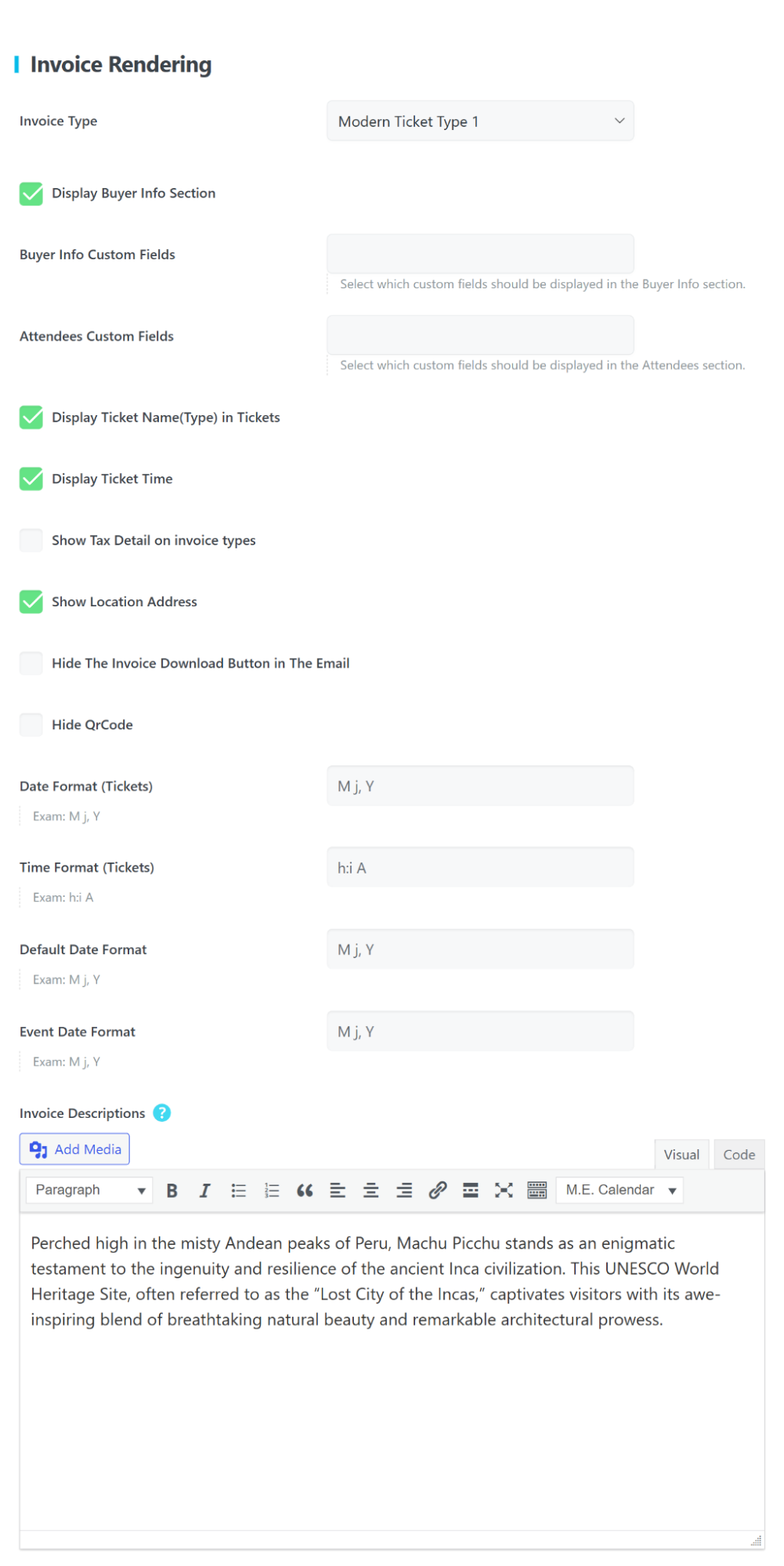
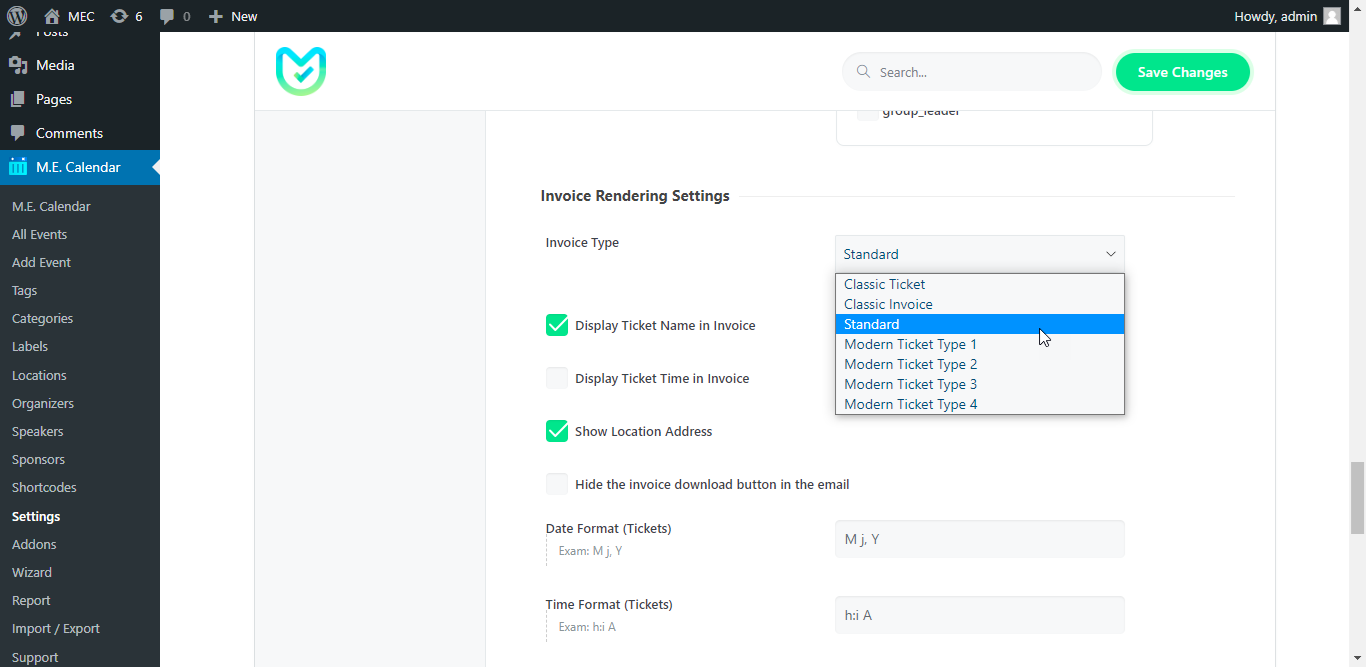
- Invoice Type: Select the visual template used for the ticket or invoice. Multiple modern styles are available, each changing the layout and placement of ticket details.
- Display Buyer Info Section: Enable or disable the buyer information block on tickets. When enabled, purchaser details such as name and contact information are shown.
- Buyer Info Custom Fields: Select which custom booking fields appear in the Buyer Info section. This allows you to display only relevant booking data.
- Attendees Custom Fields: Select which attendee-specific custom fields appear on individual tickets. This is useful when each ticket holder provides separate information.
- Display Ticket Name (Type) in Tickets: Displays the ticket type name such as VIP, Standard, or Early Bird on generated tickets.
- Display Ticket Time: Displays the event or session time on tickets.
- Show Tax Detail on Invoice Types: Displays tax breakdown information on invoices when taxes are applied.
- Show Location Address: Displays the event venue or location address on tickets and invoices.
- Hide the Invoice Download Button in the Email: Removes the invoice download button from confirmation emails while still sending booking information.
- Hide QR Code: Disables QR code display on tickets. QR codes are normally used for check-in verification.
- Date Format (Tickets): Defines how dates appear on tickets using standard date formatting rules.
- Time Format (Tickets): Defines how time appears on tickets, supporting both 12-hour and 24-hour formats.
- Default Date Format: Sets the general date format used across invoices when no specific format is defined.
- Event Date Format: Controls how event start and end dates are displayed on tickets and invoices.
- Invoice Descriptions: Allows adding additional content such as event instructions, policies, or terms. HTML formatting and media insertion are supported.
Read Also:
Date Formats in MEC pluginPDF Generation
To allow users to download their tickets as files, you must connect a “rendering” service.
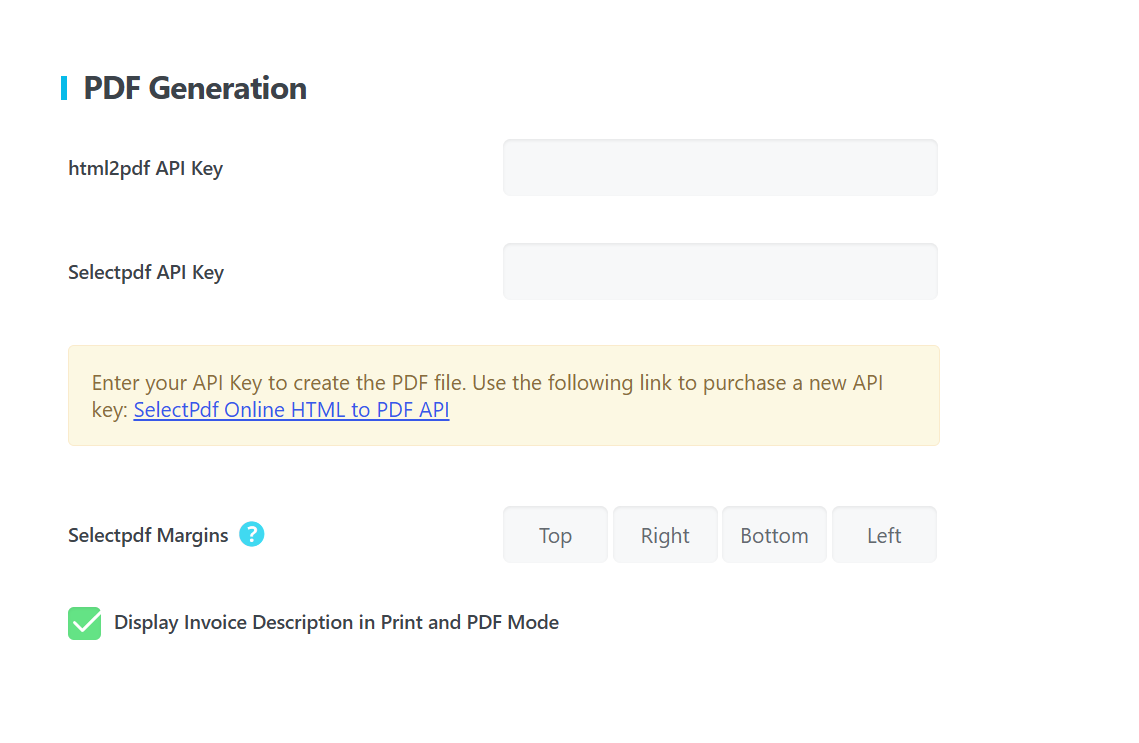
- API Keys: You need to sign up for a key from html2pdf or Selectpdf and paste them here.
- Margins: This sets the white space around the edge of the PDF. The default is 5 5 5 5.
Live Attendees Settings
With the “Use Pusher API” option, you can see who registers events at the current time.
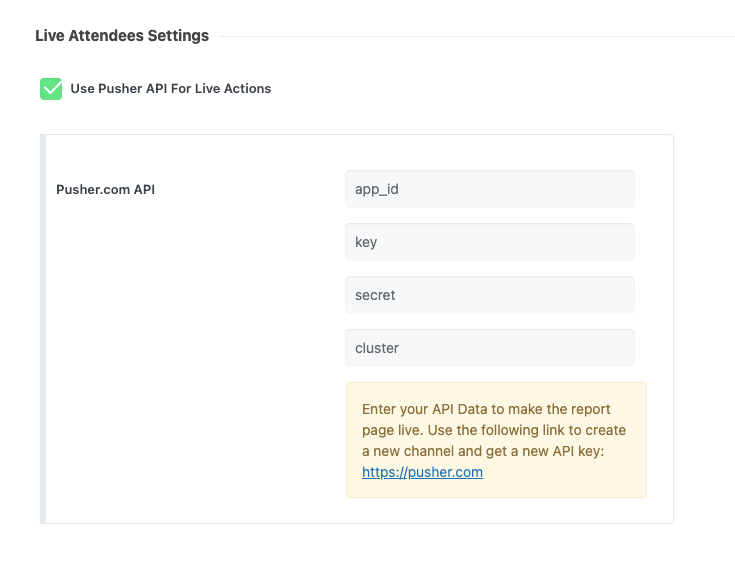
Use Pusher API For Live Actions: After using Pusher API, go to MEC > Report, find your event, and the date you want to track to see who registers.
Check-in & Notifications
This section controls how tickets are verified, how notifications are handled, and which users are allowed to perform check-ins.
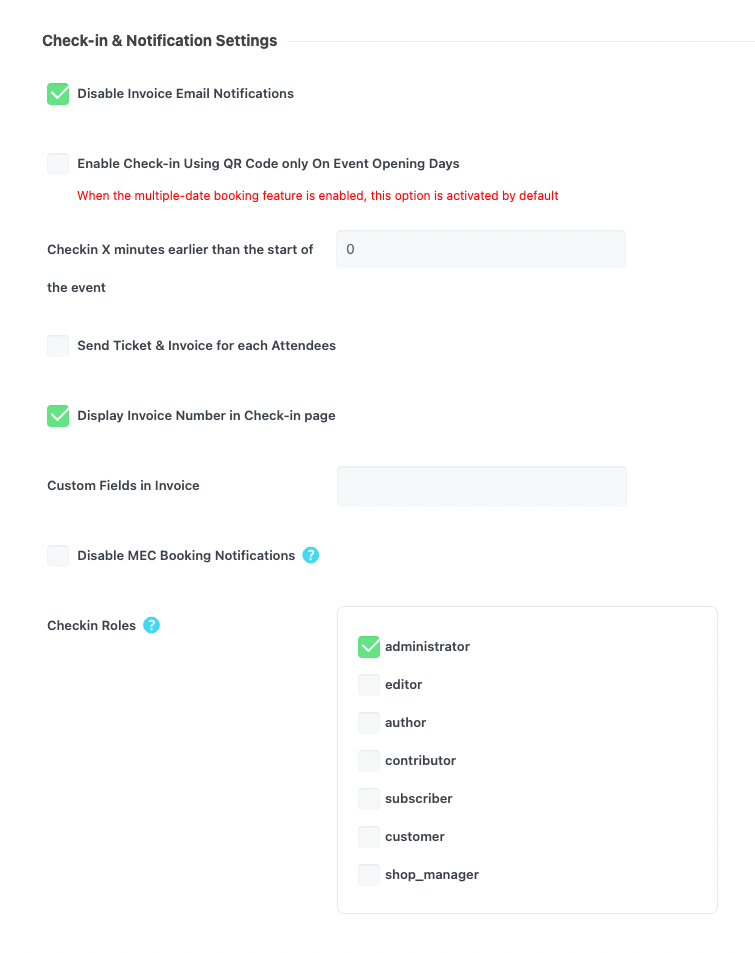
- Disable Invoice Email Notifications: Disables automatic invoice email notifications sent to attendees after booking. When enabled, attendees will not receive invoice emails from the addon.
- Enable Check-in Using QR Code Only On Event Opening Days: Restricts QR code check-ins to the actual event dates. When enabled, tickets cannot be scanned before or after the scheduled event days. This option is automatically enabled when the multi-date booking feature is active.
- Check-in X Minutes Earlier Than the Start of the Event: Defines how many minutes before the event start time staff can begin scanning tickets. Setting this value to zero allows check-in only from the event start time.
- Send Ticket & Invoice for Each Attendee: Sends separate tickets and invoices to each attendee when multiple tickets are purchased under a single booking. Each attendee receives an individual ticket with their own details and QR code.
- Display Invoice Number in Check-in Page: Displays the invoice number on the check-in interface, helping staff verify bookings more easily.
- Custom Fields in Invoice: Allows selection of booking or attendee custom fields that should be displayed on invoices.
- Disable MEC Booking Notifications: Disables the default booking notification emails generated by MEC. This allows the Ticket and Invoice Addon to fully manage notification delivery without duplicate emails.
- Check-in Roles: Defines which WordPress user roles are allowed to scan and verify tickets. Only selected roles will have permission to access the check-in functionality.
Apple Wallet Pass
Allow iPhone users to save their tickets to their digital wallet.
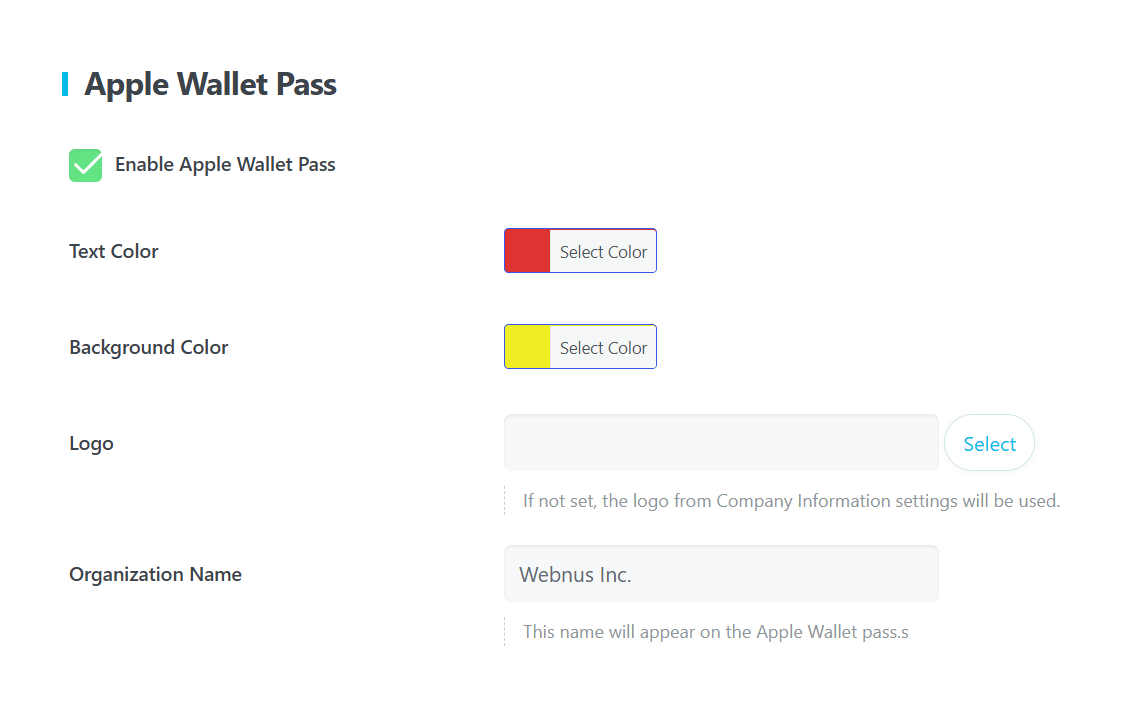
- You can customize the Text Color, Background Color, and upload a specific Logo for the phone app.
- Organization Name: This is the name that will appear on the digital pass.
Accessibility Control
This feature allows administrators to manage who can access the invoice system and the check-in functionality. It provides a layer of security and administrative oversight for your event ticketing.
- Enabled: Invoices are visible to the user, and the check-in system (including QR code scanning) is active.
- Disabled: Invoices are hidden from the user, and access is restricted.
- Note: Even if a user has the direct link to a disabled invoice, the system will block access. However, administrators can still view these invoices via the WordPress backend.
- Bulk Actions: You can enable or disable accessibility for multiple invoices simultaneously using the Bulk Actions dropdown in the invoice list.
Pro Tip: Use the “Disabled” status if you need to temporarily pause ticket validation for a specific event or if you are auditing an attendee’s payment status before granting them entry.
Managing MEC Invoices
Once your configuration is set, all generated invoices are housed in a dedicated management hub. You can access this by navigating to MEC Invoices > Invoices.
Here you can see all the bookings. This is similar to the Booking menu on MEC.
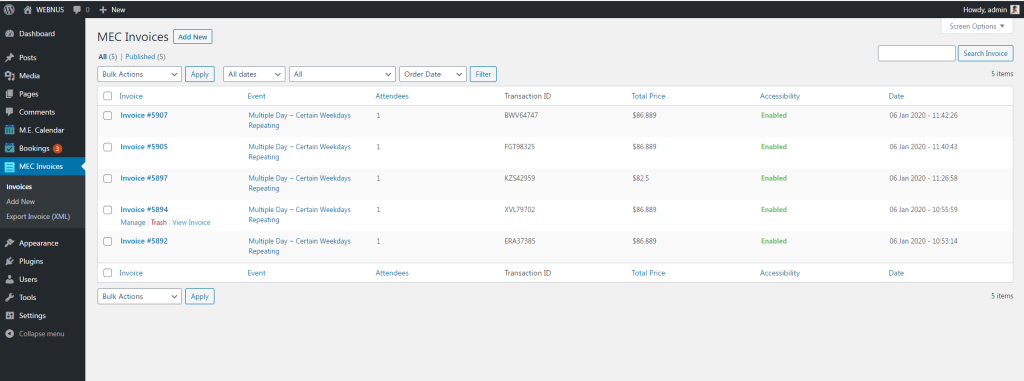
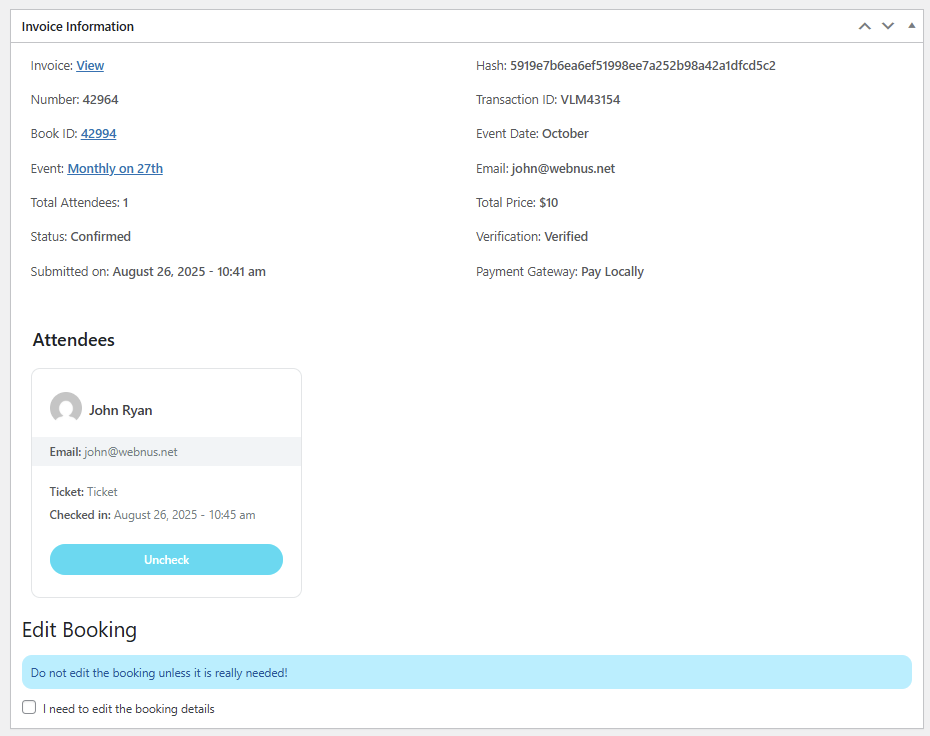
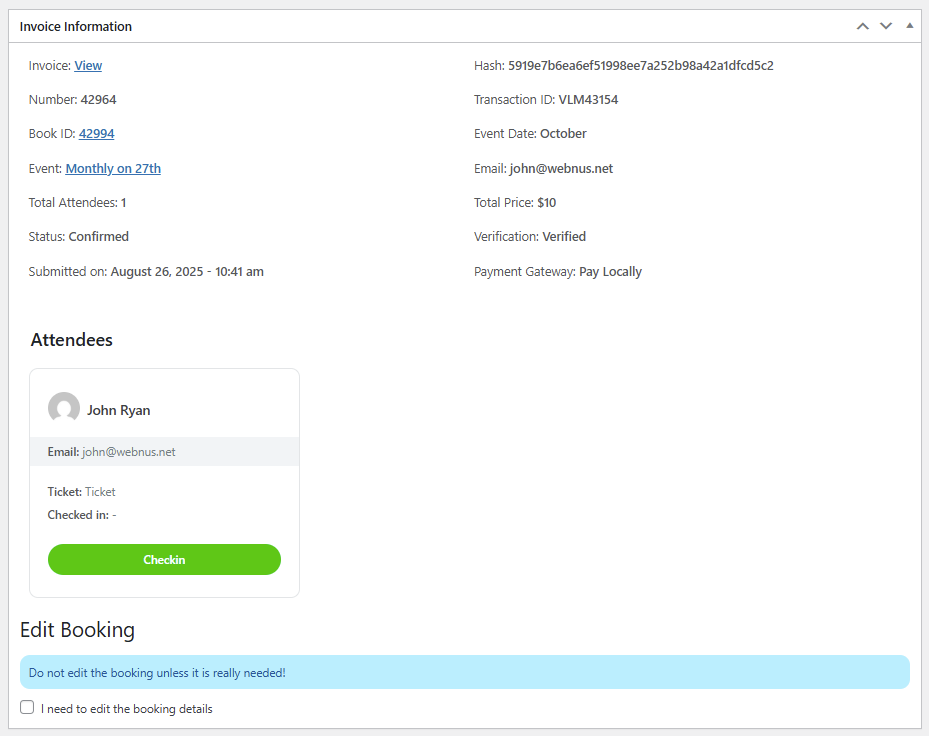
View & Audit: Easily click on any invoice to view the full details, including the unique Invoice Number and QR code.
Exporting Data: Use the Export Invoice button to download a PDF file of your invoice for external accounting.
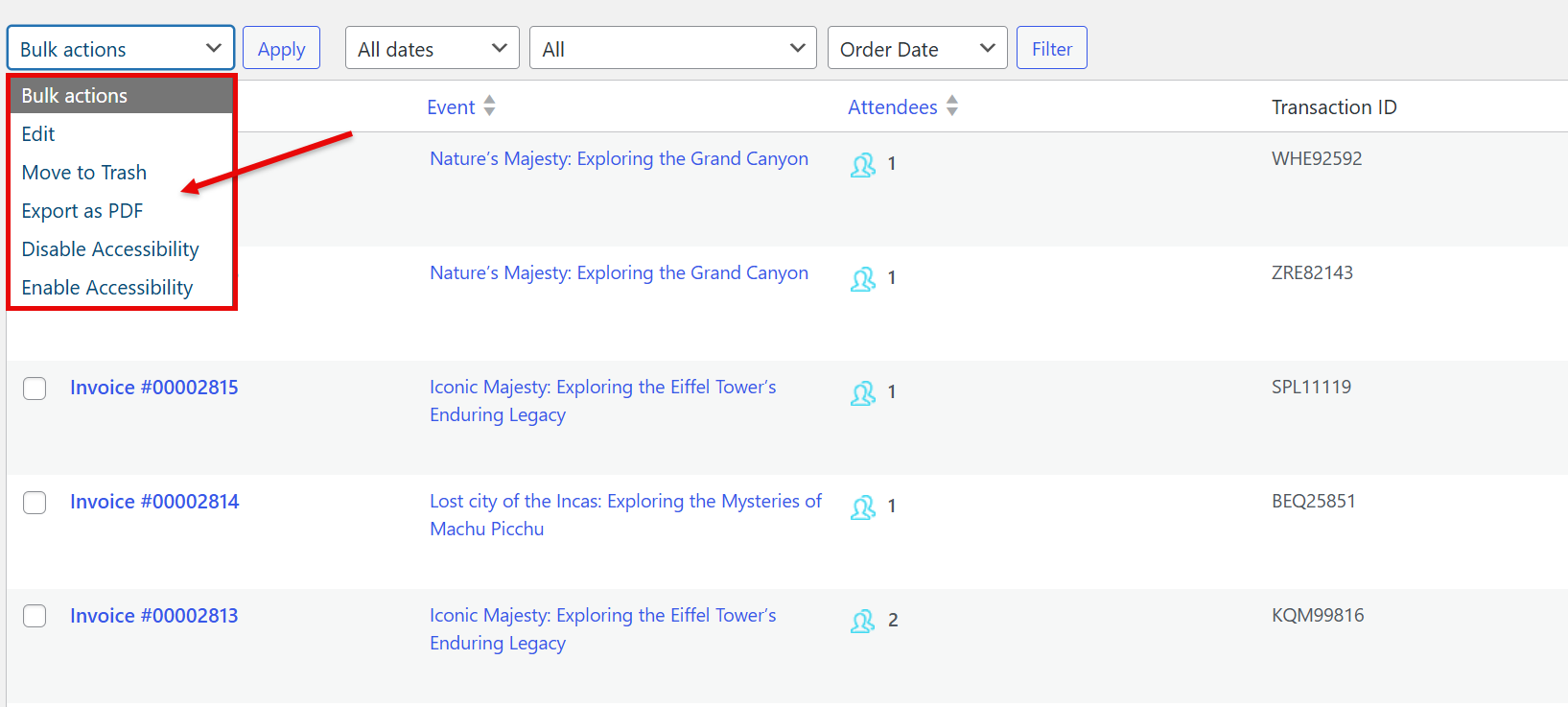
Manual Invoice Creation (Add New): If you need to issue a ticket manually for an offline sale or a VIP guest:
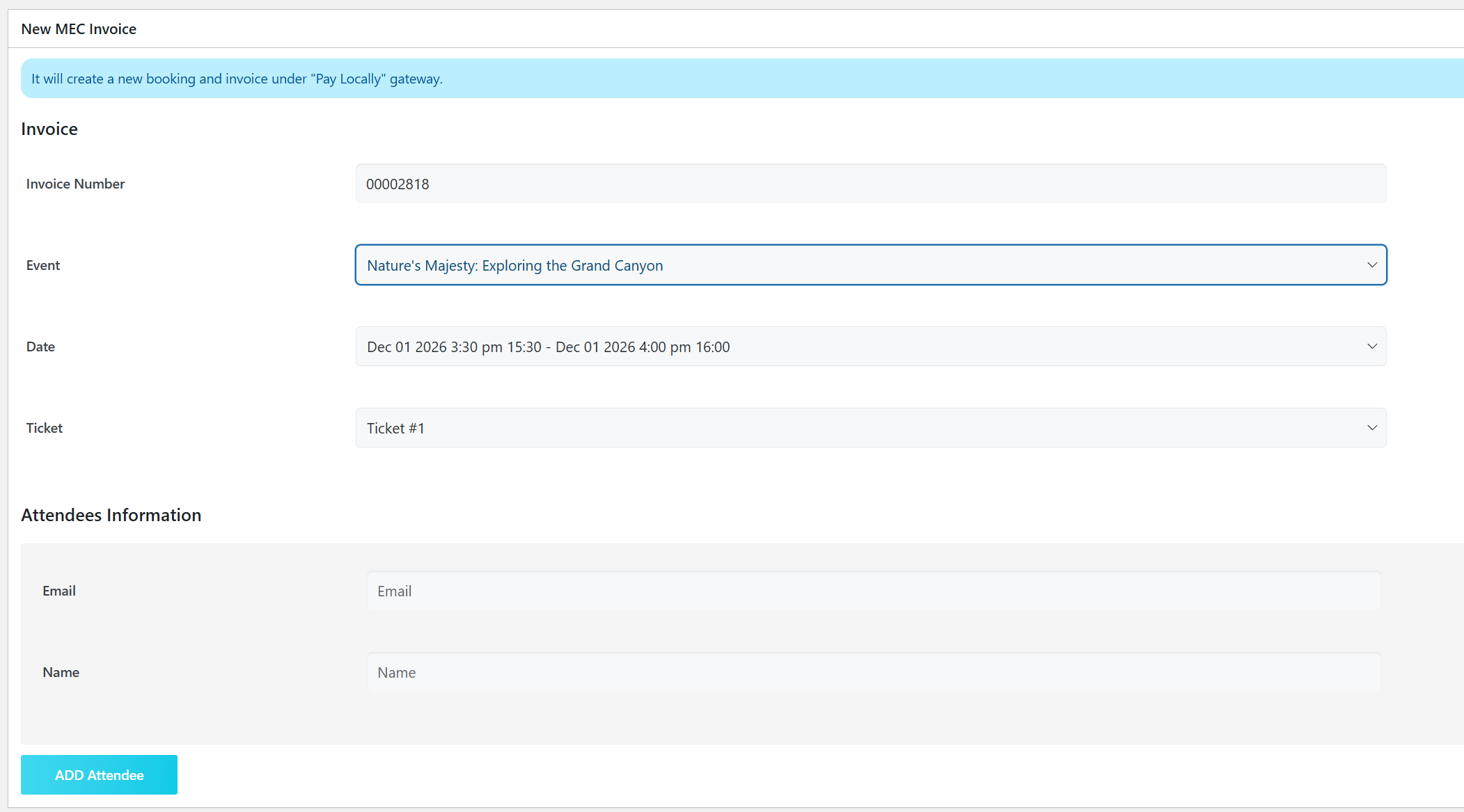
- Click Add New at the top of the page.
- Select the Event to load the corresponding ticket types.
- Click Add Attendee and fill in the guest’s details.
Important: You must click Publish to finalize the invoice. This generates the unique QR code and invoice number required for the ticket to be valid.
Custom CSS
Invoice Custom Styles: If you’ve got any CSS codes for the tickets then make sure to place them here and it will also be implemented in the PDF file and the email sent to the user.
Read Also:
Inspect ElementManaging Your Attendees
Generate Invoice
If you already had bookings before installing this addon, go to the Generate Invoice tab and click Import. This creates invoices and QR codes for all your previous customers automatically.

The Check-in Process
- Attendees show their QR code (printed or on a phone).
- Staff scans the code using a smartphone or the dedicated MEC Utility App.
- The system instantly verifies the ticket. If valid, the status in your dashboard changes to “Checked in”.
Use Cases (When This Addon is Useful)
- Online Ticket Sales & Registration Management: Perfect for events that need to sell tickets online and track attendee information.
- Automatic PDF Invoice Generation: Ideal for events requiring professional invoices for attendees.
- On-Site Check‑In with QR Codes: Ensures fast and accurate attendee check-in.
- Real-Time Attendee Tracking: Using Pusher API for live events and online registrations.
- Individual Tickets & Invoices per Attendee: Useful for large groups or multi-ticket orders.
- Apple Wallet Support: Allows iPhone users to save tickets digitally.
- Customizable Ticket & Invoice Design: Use CSS and templates to match your branding and style.
Situations This Addon May Not Be Ideal
- Requires MEC Pro: Won’t work without the Lite version of Modern Events Calendar.
- Advanced Payment Workflows or Complex Discounts: Not suitable for multi-step payments or multi-currency setups.
- Free Tickets with Limited Management: Free ticket issuance is possible, but tracking and management features are restricted.
- Very Large Events with Multiple Concurrent Sessions: Limited for highly complex event workflows.
Troubleshooting for Beginners
- PDFs not downloading? Ensure your API keys are correct and go to WordPress Settings > Permalinks and click “Save Changes” to refresh your site’s links.
- Changes not showing? If you add Custom CSS to change colors or fonts and don’t see the result, clear your website’s cache.
- Non-WordPress Systems: Only works with WordPress and Modern Events Calendar.
FAQ
How to Offer Tickets for Events?
For this, you are going to need MEC Pro and Ticket and Invoice addon.
With them, you can use the booking and ticket features provided by the Ticket and Invoice Addon.
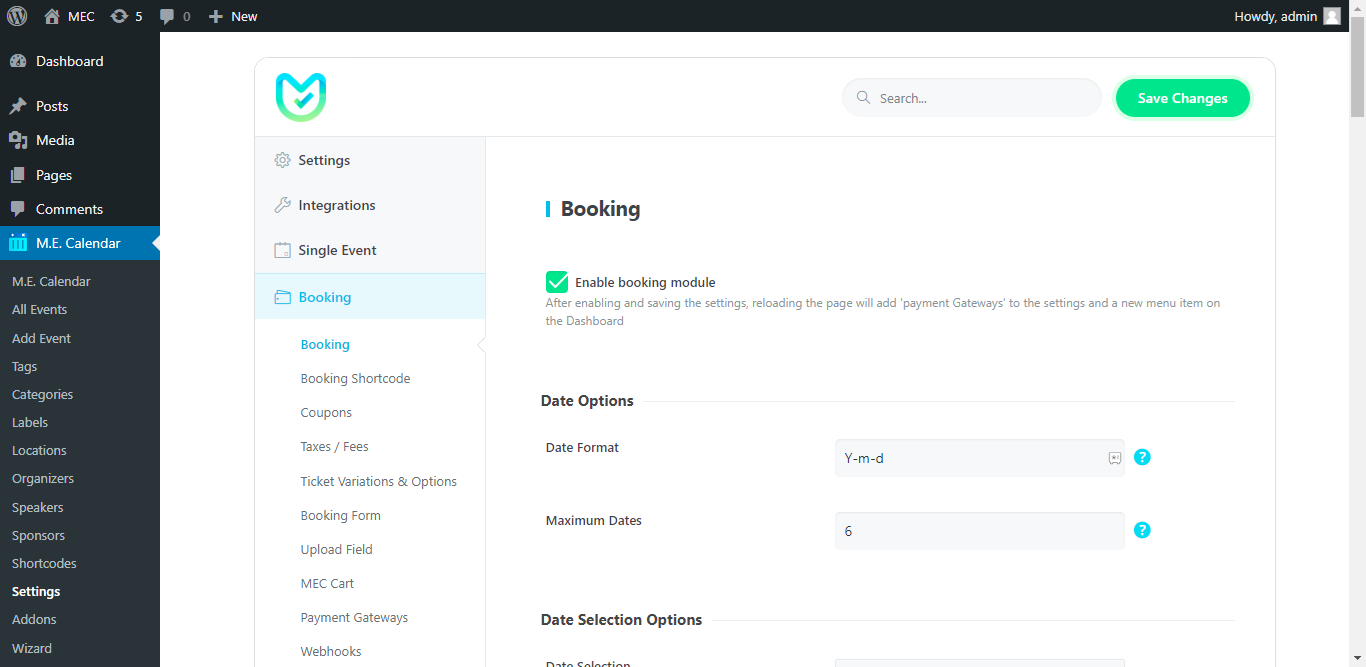
After installing MEC Pro, you should go to MEC Settings > Booking and enable the Booking Module.
Reload the page to have the settings appear.
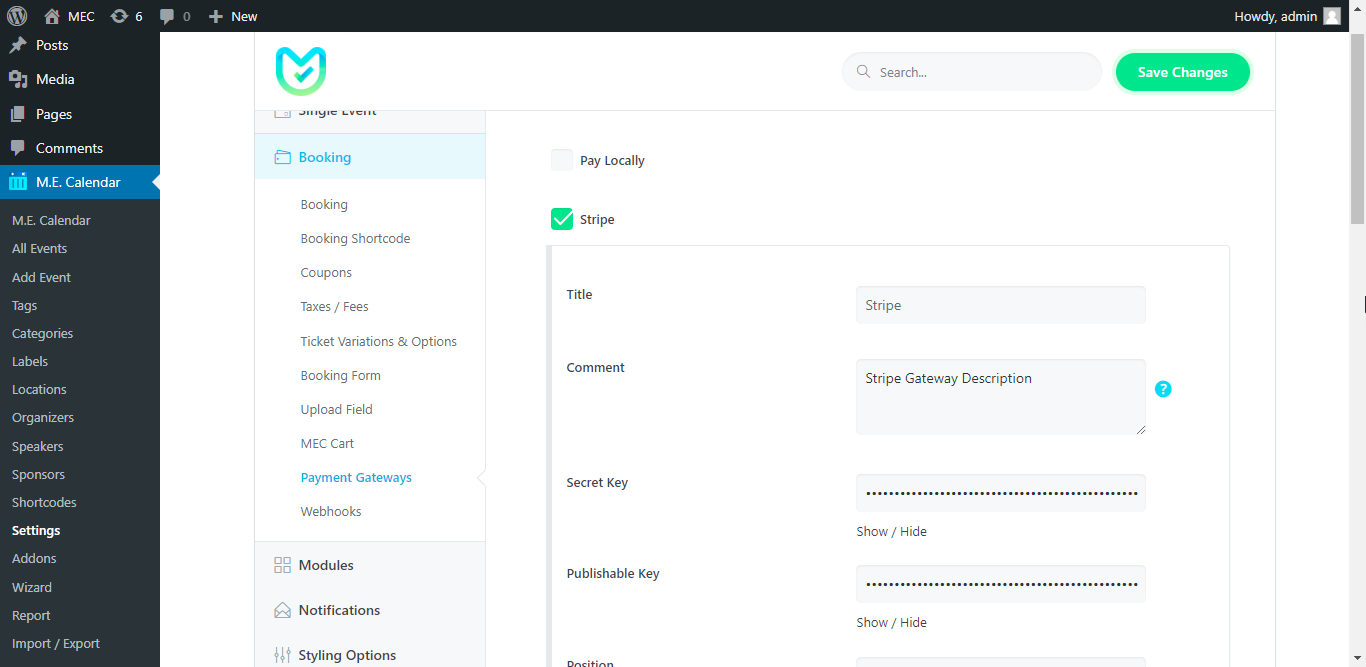
Then, go to MEC Settings > Booking > Payment Gateway and configure the payment gateway.
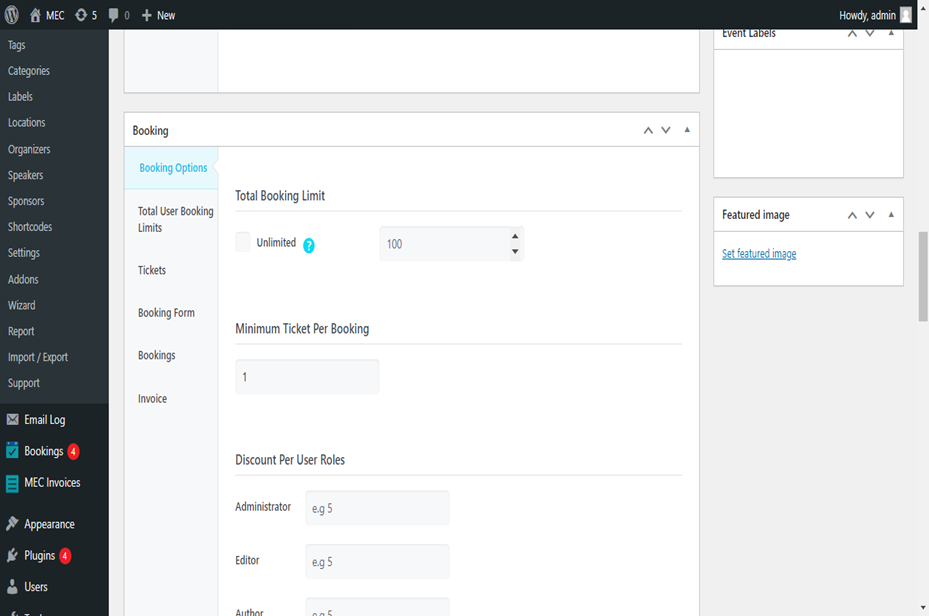
Now, by going to Add/Edit Event page, you will notice a new section that allows you to configure and setup bookings for your event.
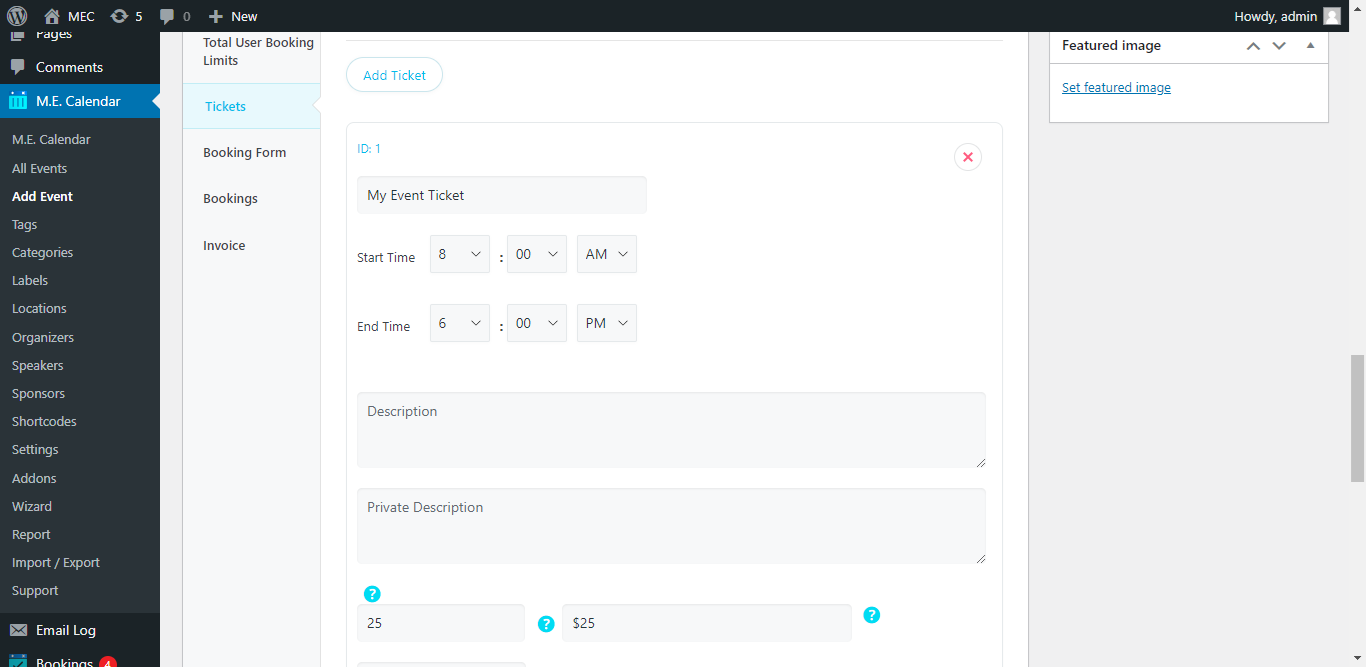
To begin, simply create a ticket for your event. Go to the Ticket tab and click on Add Ticket to create one. Enter a name and price for that ticket and fill out the rest of the fields.
After installing and activating the Ticket and Invoice addon, go to MEC Settings > Invoice Options.
Here, you can configure the options for printable tickets or invoices. One of these options is Invoice Type, which you can choose from one of the templates we have available for you.
The initial setup is complete.
Now, after making a booking, users will receive the ticket or invoice to the event and can have it printed and on them on the event day.
How to Plan an Event Efficiently?
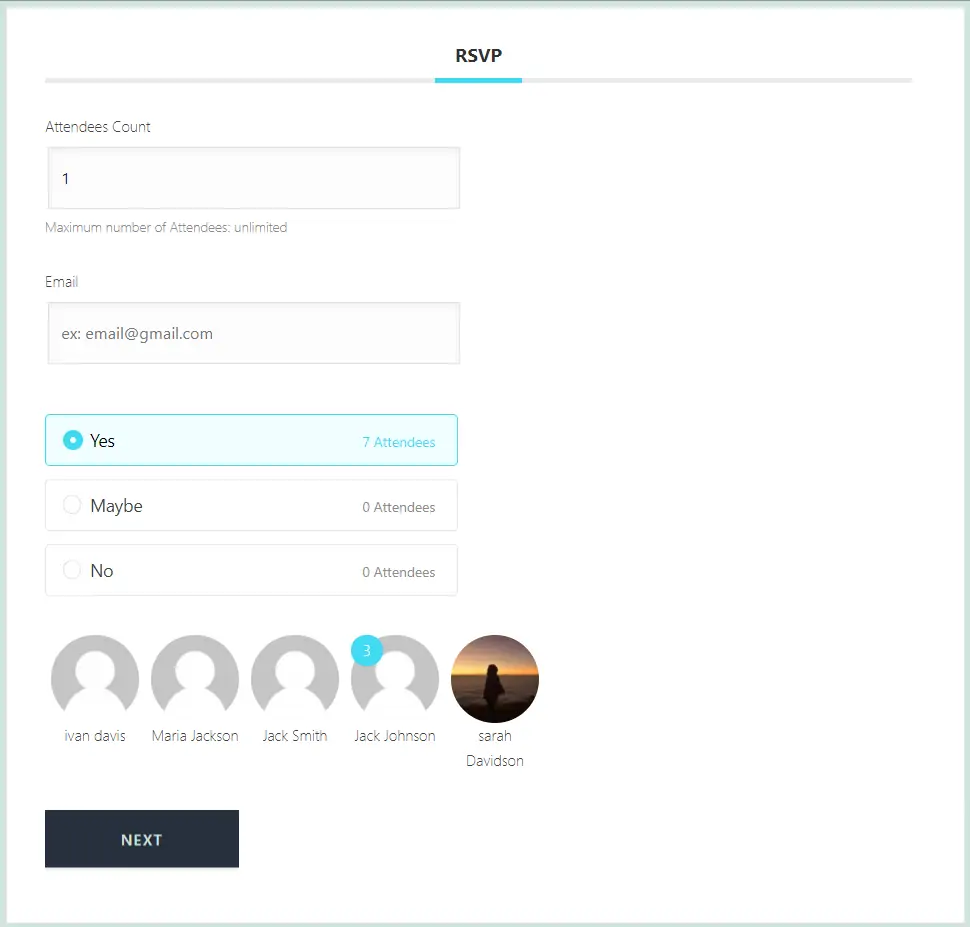
Our suggestion is the RSVP addon.
With the Ticket and Invoice Addon, you can get general feedback from the attendees for the event before starting to plan things.
Suppose you are planning an event, but you are not sure how many people will attend or you are not sure which location best suits your event.
Here, you can create the event in MEC, then use the RSVP addon to display a form to the users and ask them to submit an RSVP response.
Finally, you can plan your event and work out its details using the information you have received.
Is It Possible to Sell Tickets via PayPal or Stripe?
Absolutely. We have configured popular payment gateways such as PayPal and Stripe in MEC Pro by default.
You can go to MEC Settings > Booking > Payment Gateway and connect your PayPal or Stripe account there.
Watch this video for more information.
Is It Possible to Customize the Tickets?
Yes. You can use your business information in the tickets or invoices that are sent to the attendees.
To do this, go to MEC Settings > Invoice options and fill out the Company Information fields.
Also, in the Custom CSS section, you can change the style of the different parts of the ticket.
How to Export a List of Attendees?
To do this, simply go to MEC > Bookings and filter the bookings based on the event.
Then, you can select all of the bookings and export them from the Bulk Edit menu.
There is another filter besides the event name. For instance, you can filter one specific occurrence of a repeating event and export its attendees.
The exported file can be in CSV and MS Excel.
How Does the Check-In Process Work?
If you have the Ticket and Invoice addon installed and active, after users make a booking, they will receive a ticket or invoice that contains a QR code.
This QR code is used to check in attendees at the event, and, as the host, you can scan the code to check the attendees in and have an idea of who’s attended and who hasn’t.
You can do this with our app or with your smartphone. If you are using your smartphone, you must be logged in to your website in its browser app.
Otherwise, you won’t have the proper access to check-in people.
We have recently designed an app for this to make the process easier.
With this app, you don’t need to log in via your phone’s browser because it works with an API key.
This way, you can link your website and the app and scan the codes effortlessly.
After scanning the QR code, you will see a message regarding whether the check-in was successful, and it will also update the status in the backend of the website to Checked in.
If the attendee was already checked in, you will see a message saying Already Checked In. The messages are intended to improve user experience.
Report Out Dated Content
If you think the content of this page does not reflect updated information, please let us know.


We are looking to purhcase this Addon but want to know few things as that’s critical. Can we ask somehow another email for billing purpose in the booking form so user can specify this email to receive Invoice / Receipt of the purchase and Attendees only get booking confirmation email.
Hello,
unfortunately, it’s not possible.
We do however have a 60-minute online demo (that can be used infinite times) which allows users to test out the limits of MEC and to make up their mind. On the off chance that even after your purchase MEC seems incompatible to your needs, you can request a refund within 30 days of your purchase.
Here is a link to our online demo:
http://webnus.biz/mec-test/
And here is a link to our online documentation:
https://webnus.net/dox/modern-events-calendar

If I purchase the PRO subscription with the woocommerce bundle, will I be able to sell tickets and make money WITHOUT needing this addon? I am not exactly sure the purpose of this addon if the prosubscription already comes with ticketing features.. Thanks!
Hello,
you can make money using MEC Pro.
https://webnus.net/modern-events-calendar/features/
https://webnus.biz/mec-test/
The Addons contains additional features that are not necessary for you.
Ticket And Invoice Addon:
– advanced ticket
– QRcode
– check-in

Is it possible to collect a deposit for an event and use this add-on to send an invoice for the balance due?
Hello,
unfortunately, it’s not possible.
I will forward your comment to the dev team and if possible they will consider this in the upcoming update of the plugin.

can you add a column in “WordPress Dashboard > MEC Invoice > Invoices” for display which attendees are already checked or not? So i don’t need to jump into edit Invoice page to check the status one by one.
Hello,
I will forward your comment to the developer team and they will process that. If it is possible they will add this feature in future plugin updates.
Hi there,
is it possible with this Addon to use different invoice Layouts depending on the event?
We have events with and without taxes depending to which customer we offer it. So we have to companies who sell them. One with tax and one without and so we need to change the Logo and the Adress depending on the event.
Is this possible or could it be customized by your service?
Best regards,
Markus
Hello,
Unfortunately, currently, this is not possible,
I will forward your comment to our developer team and they’ll surely receive it. If it is possible they will add this feature in the upcoming updates of the Plugin.